
Build your first adventure
Build a tiny game before opening the larger systems. You need a running editor.
1. Create a project
Section titled “1. Create a project”Choose Create a project. Enter Project title: A Quiet Room and Folder name: quiet-room. Leave Start with The Locked Study example off. You can keep Follow the first-adventure tutorial on for the in-editor checklist. Choose Create project.
A project contains authored starting content. The playtest is a separate running copy.
2. Describe the room
Section titled “2. Describe the room”Select the starting location in the hierarchy. Set its name to Study and description to:
A quiet room. A small brass bell rests beside the window.
Changes appear in the project immediately. Use Save to write them to disk. Restart playtest to see a new opening scene after editing.
3. Add a bell
Section titled “3. Add a bell”Use Add object, name it brass bell, add alias bell and place it in Study. Write A little bell with a clear, bright note. as its description.
New entities have an Examine action containing PRINT DESCRIPTION. Open Actions and select Examine. The block reads the entity’s current description, so you only maintain that text in one place.
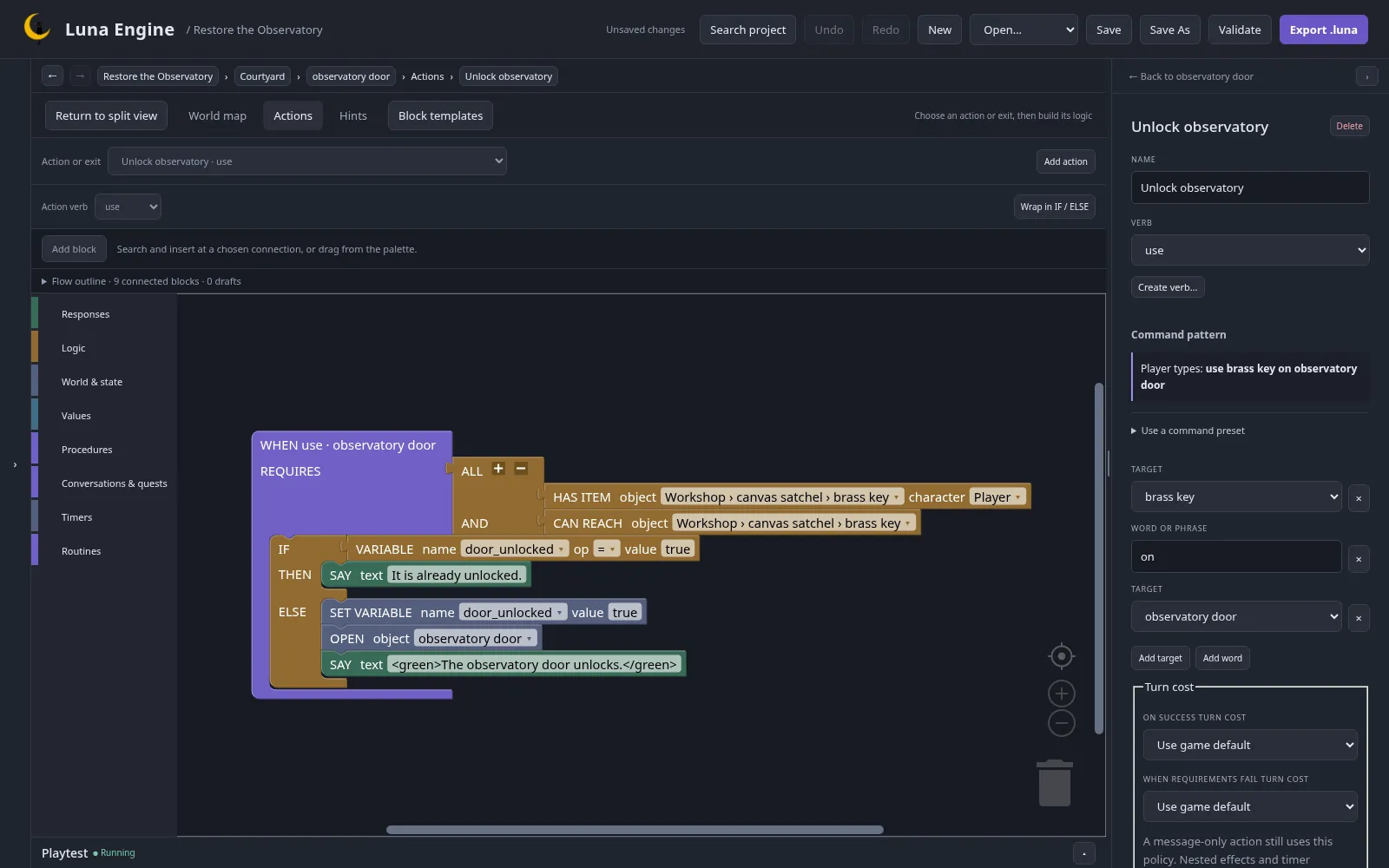
4. Make a command
Section titled “4. Make a command”Open Game data → Command vocabulary and add a verb with phrase ring. Return to the bell’s Actions, expand Add action, select the new verb and add it.
Keep the command’s entity part pointing to the bell. Connect SAY from Responses and enter The bell sings across the room. Select a block to use its inspector, or edit its inline field.
Disconnected blocks are drafts; only connected effects run. The last block has a flat bottom but still accepts another block.
5. Test it
Section titled “5. Test it”Start or restart Playtest. Enter:
examine bellring the bellExpected: the description, then the bell message. The default ignored words allow the before names. If the command is unknown, check the verb, entity pattern, placement and connected blocks.
6. Finish the story
Section titled “6. Finish the story”Open Game data → Endings, add A clear note and write an ending message. Leave No outcome selected for a message-only finish.
Return to the ring action. Add END GAME, select A clear note and connect it after SAY. Restart and ring the bell again. The game completes and prints your ending.
7. Save and share
Section titled “7. Save and share”Save the project, resolve blocking findings, then Export a .luna bundle. Follow playing and sharing to import it into the terminal runner.
For a ready-made puzzle choose Start with The Locked Study example when creating a separate project. The repository’s editable Locked Study contains the owner’s expanded story, including Tom and his toy; it differs from the small built-in template. Never replace your own project to try an example.
Continue with Restore the Observatory for a complete game, or use the feature map to learn one system.